
Windows or Linux for Ham Radio? Choose by the Programs You Use
If you already know you want to use Winlink Express or N1MM Logger+, choose Windows. If your first goal is to try FT8 in WSJT-X or work with FLDIGI, both Windows and Linux are options. Start with the program you want to open on your first day at the radio. Then check how your particular radio connects.
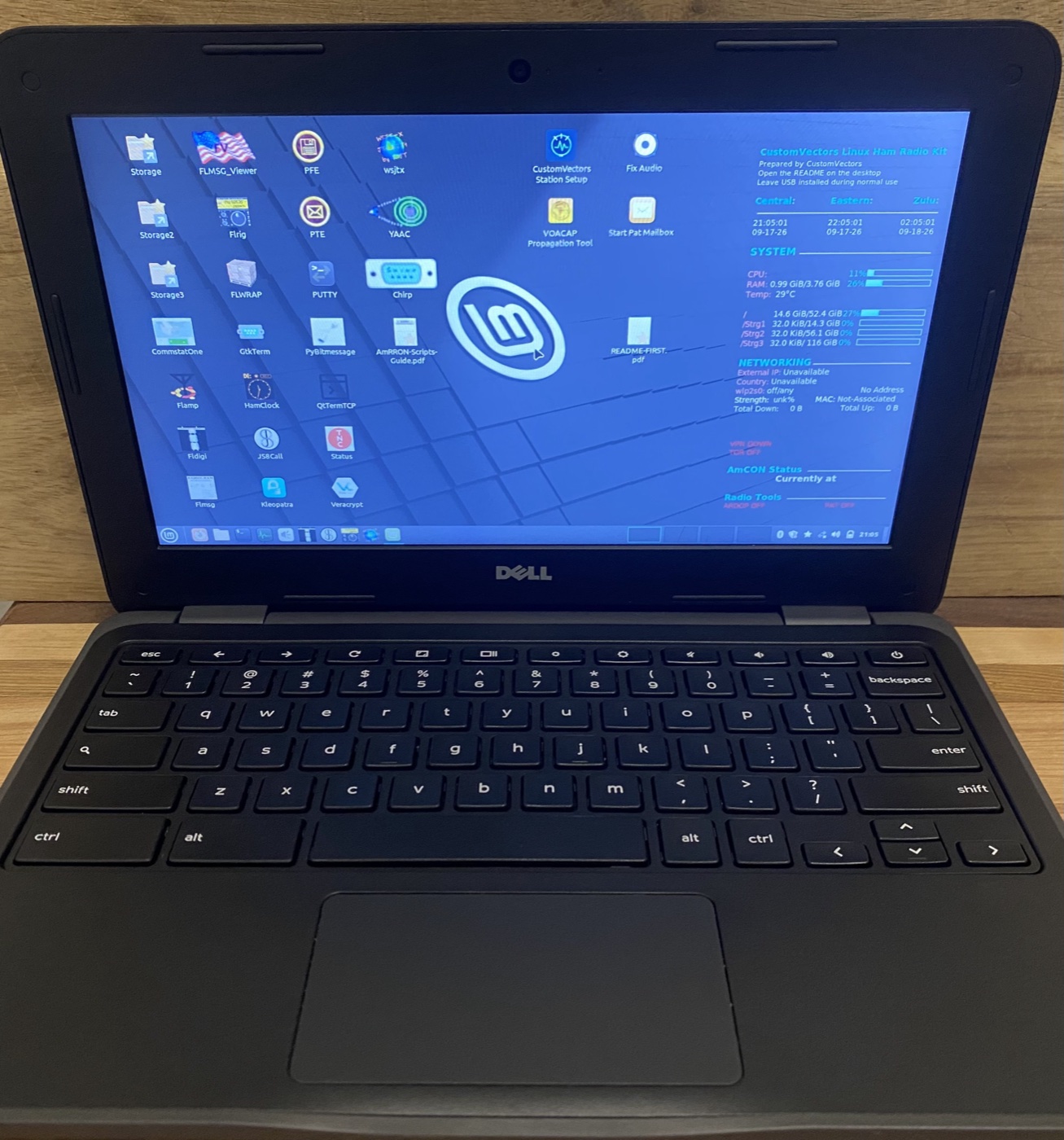
Which programs run on which system?
| What you want to do | Program | Where to start |
|---|---|---|
| Try FT8 or FT4 | WSJT-X | Windows or Linux |
| Try sound-card modes such as PSK31 or Olivia | FLDIGI | Windows or Linux |
| Use the Winlink Express interface and workflow | Winlink Express | Windows |
| Send Winlink messages using a Linux client | Pat | Linux. Check which connection mode your local gateway uses. |
| Follow your club’s N1MM contest-logging workflow | N1MM Logger+ | Windows |
Pat can work with the Winlink system, but it has a different interface and its connection options differ from Winlink Express. If someone is helping you at a club meeting, ask which client and connection mode they’ll be using. It’s much easier to follow their steps when your screen matches theirs.
Check the connection before choosing a computer
Look up your exact radio model and the cable or interface you’re using. A radio with built-in USB audio and control can have a different setup from a radio that uses an external sound interface and a separate serial adapter. In the radio manual, look for sections on USB audio and CAT control. CAT is how the computer reads or changes things like the radio’s frequency. Check whether your operating system needs a driver for each connection.
When you get the laptop and radio together, try receive first. In WSJT-X, open File → Settings → Audio on Windows or Linux and select the input from your radio or sound interface. Return to the main window with transmit disabled and look for activity in the waterfall. If you’re also setting up computer control, check that the frequency shown in the app follows the radio when you turn the dial. Seeing audio and seeing the right frequency are two separate checks. The first digital station guide walks through the receive side.
Three examples you can use to make the choice
- You want to decode FT8 this weekend. Use the computer you already know how to use, as long as the radio’s audio or interface works with it. You can try receiving before buying another computer.
- Your club uses N1MM Logger+ and has a Windows cheat sheet. Start with Windows. You can spend the club session learning the logger and the contest exchange with everyone else.
- You’re learning Linux and also rely on a Windows-only app. Two computers or a dual-boot setup can keep both workflows available. On a dual-boot computer, you choose the operating system when you start the machine and restart to switch between them. If you need two programs running side by side, keep them on the same system where possible or use separate computers.
Check Windows support if you’re looking at an older laptop
Standard support for Windows 10 Home and Pro ended October 14, 2025. A radio app can still open after that date. For a laptop you’ll routinely connect to the internet, check whether the machine can run a supported Windows release or is covered by an applicable Extended Security Updates program. Microsoft’s Windows release information lists the servicing dates.
A quick way to decide is to write down the program you must have, your radio model, and the name of the interface or cable. If both systems can handle that list, choose the one you can comfortably troubleshoot at your station.
See the installation and operating notes for WSJT-X, FLDIGI, Winlink Express, Pat, and N1MM Logger+.
Once you know which programs you want, compare the prepared Windows and Linux ham radio laptop kits at HamLaptop to see the software and hardware included with each option.