
What Is a Ham Radio Grid Square? Find Yours and Enter It in WSJT-X
A ham radio grid square is a short code for the area you’re operating from. If you’ve seen four characters such as FN31 at the end of an FT8 CQ, that’s the station’s grid square. Here’s how to find yours and save it in WSJT-X before your first contact.
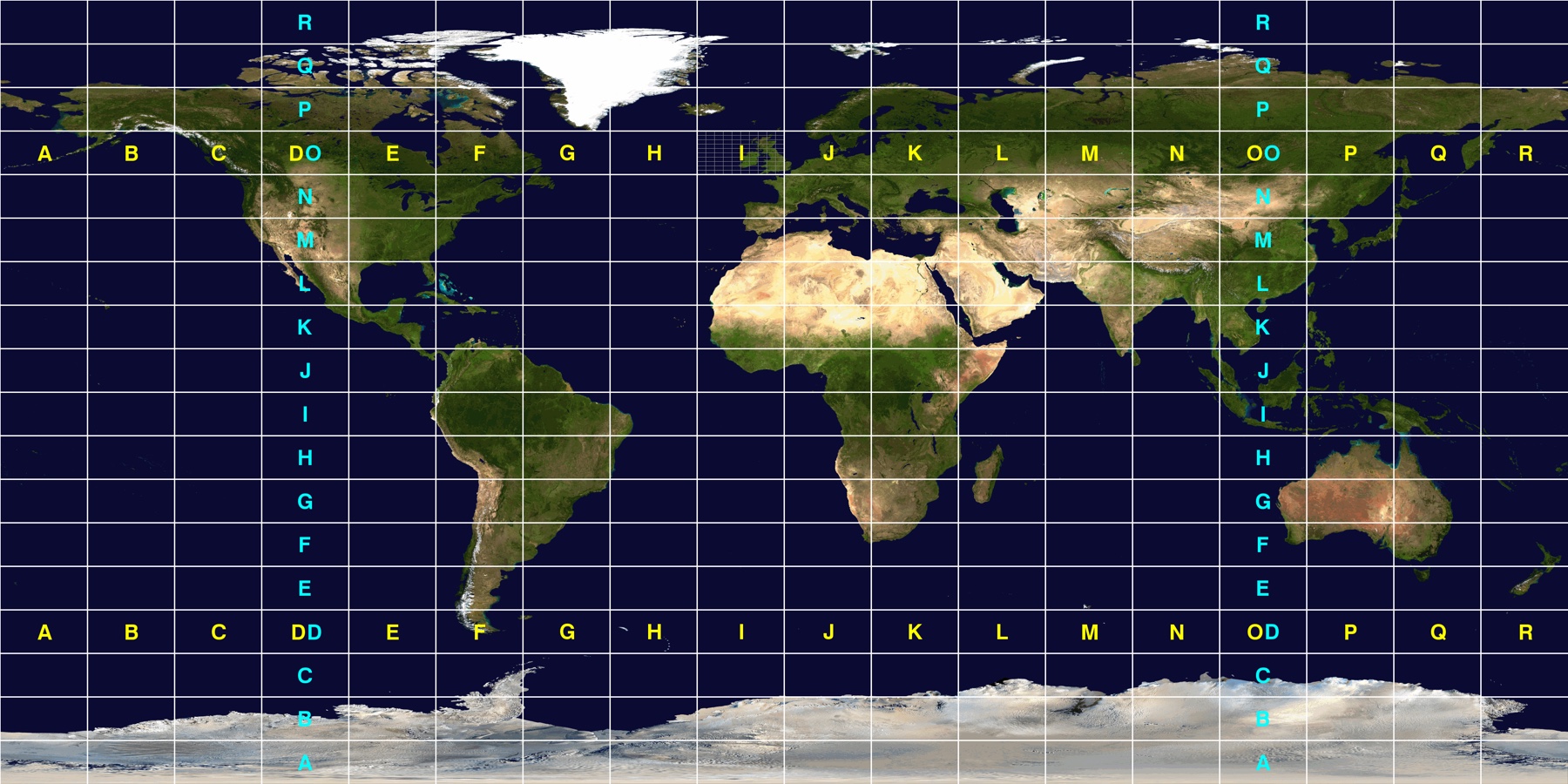
Why does the map give me six characters?
The Maidenhead Locator System divides the map into areas. The first two letters identify a broad region called a field. The next two digits narrow it down to a grid square that spans two degrees of longitude and one degree of latitude. Two more letters describe a smaller area inside that square.
- FN is a field.
- FN31 is a four-character grid square within that field.
- FN31pr is an example of a more precise, six-character locator inside FN31.
WSJT-X prefers the six-character locator in your settings. It’s normal to see just four characters in a standard FT8 CQ. See the ARRL’s grid square explanation and the WSJT-X User Guide for the formats.
Find the grid for the place you’re actually operating
- Open Google Maps on a computer. Zoom to the spot where your radio will be and right-click it. The first item in the menu shows two numbers. Click that line to copy the coordinates.
- Open the AMSAT grid square calculator. Enter the first number in Decimal Latitude as shown. For Decimal Longitude, reverse the sign of the second number. If Google Maps gives you a minus sign, remove it. If Google Maps gives you a positive number, add a minus sign. AMSAT’s decimal field treats west as positive and east as negative.
- Click Calculate. Copy the six-character grid from the results. If the calculator uses a slashed zero (Ø), type it as 0. Write the locator down before heading somewhere without reception.
For example, Google Maps coordinates 41.72, -72.71 mean 41.72° north and 72.71° west. Enter 41.72 and 72.71 in AMSAT’s decimal fields to get FN31pr. If the result is unexpected, check the order of the numbers and whether you entered the right hemisphere. Google Maps shows where to find both coordinates.
Use the location where you’ll be on the air. If you live in one grid and drive to a park in another, enter the park’s grid for that session. The grid locator is all you need for this field. Your street address stays out of the WSJT-X configuration.
Enter your grid in WSJT-X
- Open WSJT-X. On Windows or Linux, select File → Settings. On Mac, use WSJT-X → Preferences in the menu bar at the top of the screen.
- Open the General tab and look for Station Details. Put your callsign in My Call and your locator in My Grid. A six-character entry has two letters, two digits, and then two more letters.
- Click OK. Open the same settings again and check that the grid you wanted is still there. If you switch between saved configurations, check the one you’re using before a portable session.
Practice reading a grid without transmitting
With your radio connected, select FT8 and leave Enable Tx off. Watch the Band Activity pane until you see a CQ line. Read it from left to right. First comes CQ, which is a general call for a contact. Then comes the transmitting station’s callsign. The last four characters may be that station’s grid, such as FN31. You can look up that grid on the same map to see the general area you’re hearing.
If you set up somewhere new, check three things before your first contact. The callsign is yours, the grid matches the place you’re operating from, and the computer’s clock is accurate. If you’re taking the radio somewhere off-grid, here’s how to check FT8 with your internet connection turned off.
Want a computer with WSJT-X already installed? See the prepared ham radio laptop kits at HamLaptop and check the software list for the kit you’re considering.