
Does FT8 Need Internet? How to Use FT8 Offline
FT8 works without internet. Your radio sends and receives the messages over the air. What WSJT-X does need is an accurate computer clock. If you’re taking a laptop and radio to a park, the most useful thing you can do before leaving is check the clock and see whether you can decode a few stations with Wi-Fi turned off.
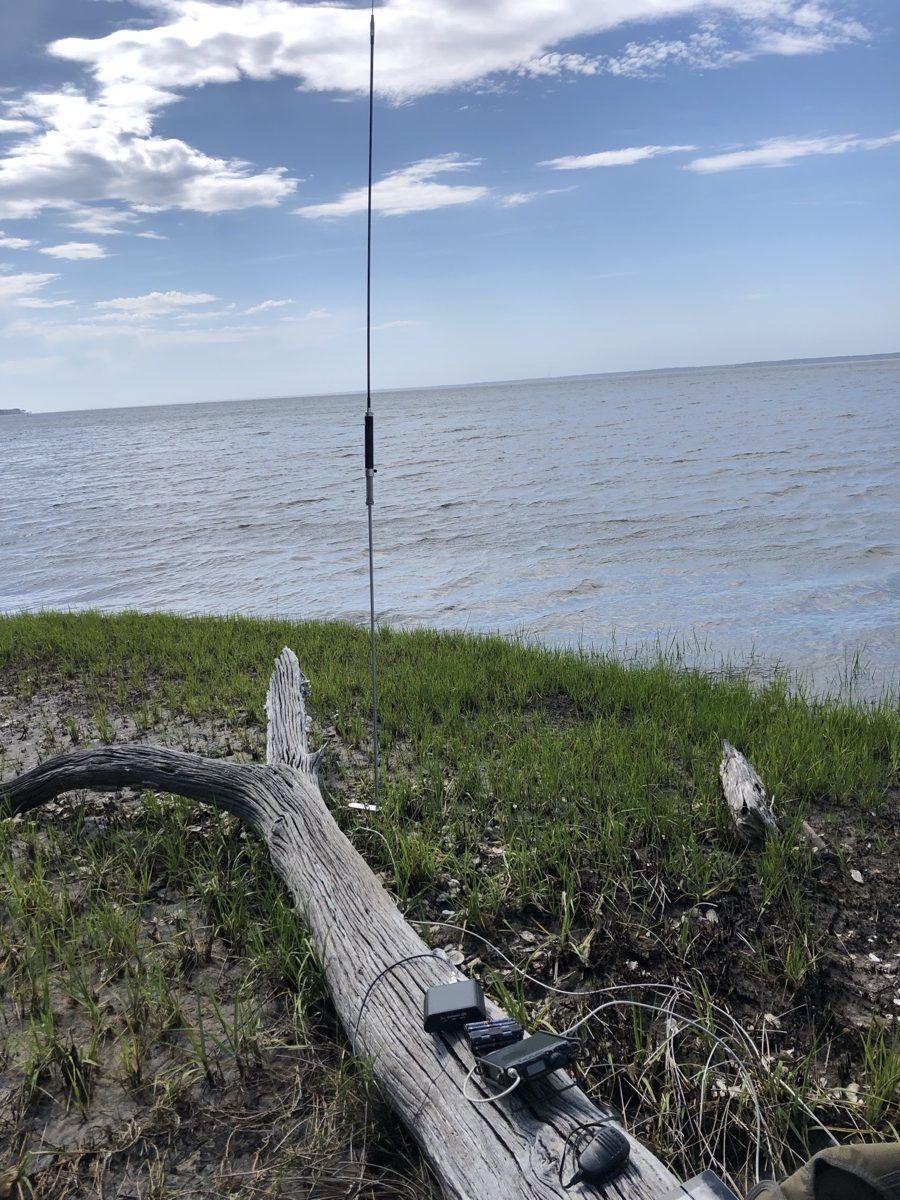
What works when you lose internet?
- Receiving and making FT8 contacts. WSJT-X decodes audio from your radio and generates the audio for your own transmissions. Both stations can be offline. You still need a working radio and antenna, and your laptop needs to be able to hear the radio.
- Keeping a local log. WSJT-X can save contacts on your computer. You can upload or confirm them online after you get back.
- Online reception reports and lookups wait. PSK Reporter needs an internet connection for uploads and to show you the reports. The same goes for live callsign lookups and online log uploads. You can still see the stations your own radio hears in Band Activity.
FT8 exchanges short messages such as callsigns and signal reports. If your goal is to send email over radio, that’s a different job. Winlink has a radio option and an internet-only Telnet option. See Winlink’s software guide for the difference.
Get your computer ready before you leave
- Sync the clock while you’re still online. On Windows, search Settings for Date & time, look for the automatic time setting, and use Sync now if it’s available. On Linux, look for Date & Time in system settings and check that automatic time or network time is on. Compare the laptop clock, including the seconds, against a known accurate clock. WSJT-X calls for time accurate to within one second of UTC.
- Check the time again after a restart or sleep. Turn Wi-Fi off, restart the computer, and compare the clock again. If it drifts noticeably between checks or loses time on restart, plan for an offline time source. A GPS receiver can help if you have a time-sync tool that works with it. Try that setup at home first so you know the receiver is actually setting the computer’s clock.
- Decode a few signals while offline. Connect your radio the same way you plan to in the field. In WSJT-X, pick FT8 and a band you know is active, leave Enable Tx off, and click Monitor if monitoring is idle. Give it a few receive periods. Look for lines with callsigns in Band Activity. A moving waterfall shows the app sees audio. The lines with callsigns show it can make sense of that audio.
- Save what you’ll want at the station. Keep the radio manual, setup notes, and any band plan you use on the laptop. If you plan to operate from a different location, look up that location’s grid square before leaving, or save a map you can use offline.
If you’ve never connected your radio to a laptop, start with the receive-only station walkthrough. You can also open a compatible WSJT-X sample recording using File → Open. That’s a good way to learn to read Band Activity while you’re waiting for the band to open.
There are signals on the screen. Why won’t they decode?
- Several signals are visible, but nothing decodes. Check the clock and confirm the selected mode is FT8. FT8 uses 15-second periods. A clock that’s off by a few seconds can make a lively waterfall look like a dead band in the decode list.
- The waterfall barely moves. Check whether the radio is receiving on the expected band and whether WSJT-X is using the radio’s audio input. The laptop microphone is an easy input to select by mistake.
- Band Activity has callsigns, but the reporting map is blank. Your local decode is already working. Check the online reporting service when you’re back on a connection.
The best rehearsal is simple. With Wi-Fi off and transmit disabled, watch a few fresh decodes appear. Then you know you can start listening at the park even if your phone has no signal.
See the documentation for WSJT-X User Guide and PSK Reporter documentation.
If you’d like a laptop with the radio software already installed, browse the HamLaptop kits. Check the individual listing for what’s included before you choose one for your station.